Showing posts with label Classic ASP. Show all posts

Saturday, 13 June 2015

VBScript to list the Active Directory security groups a user belongs to

This is a little script that queries the Active Directory domain and returns the AD security group memberships that the given user belong to by querying the MemberOf  property of the user.

Note:
  • The computer that the script is run on has to be joined to a domain, as it is querying the root DSE.

'Response.Write GetADGroups("tallitguy")    'ASP
MsgBox GetADGroups("tallitguy")             'VBScript

Function GetADGroups (ADUserName)
    
    Const ADS_SCOPE_SUBTREE = 2
    
    Dim objRootDSE, strDNSDomain, strTarget
    Dim objConnection, objCmd, objRecordSet
    Dim tmp, Ctr, i, Grp, strList
    
    ' Connect to the LDAP server's root object
    Set objRootDSE = GetObject("LDAP://RootDSE")
    strDNSDomain = objRootDSE.Get("defaultNamingContext")
    strTarget = "LDAP://" & strDNSDomain

    ' Connect to AD Provider
    Set objConnection = CreateObject("ADODB.Connection")
    objConnection.Provider = "ADsDSOObject"
    ' Domain account credentials with read access to LDAP:
    objConnection.Properties("User ID") = "domain\username" 
    objConnection.Properties("Password") = "password" 
    ' Connect to AD
    objConnection.Open "Active Directory Provider"

    Set objCmd =   CreateObject("ADODB.Command")
    Set objCmd.ActiveConnection = objConnection 

    ' Query to get groups a user is a Member Of:
    objCmd.CommandText = "SELECT memberof " & _
                        " FROM '" & strTarget & "' " & _
                        " WHERE objectCategory = 'user' " & _
                        " and name='" & ADUserName & "' "
    ' Set up the command object before running it
    objCmd.Properties("Page Size") = 100
    objCmd.Properties("Timeout") = 30
    objCmd.Properties("Searchscope") = ADS_SCOPE_SUBTREE
    objCmd.Properties("Cache Results") = False
    
    ' Execute query
    Set objRecordSet = objCmd.Execute

    ' Initialize counter & return value
    Ctr = 0
    strList = ""
    
    ' Iterate through the query results    
    Do Until objRecordSet.EOF
        For i = 0 to objRecordSet.Fields.Count -1
            For each Grp in objRecordSet.Fields("memberof").value
                Ctr = Ctr + 1
                tmp = Replace(Split(Grp, ",")(0), "CN=", "") 
                
                strList = strList & tmp & "; " & vbcrlf
                
            Next
        Next
        objRecordSet.MoveNext
    Loop
    
    GetADGroups = strList
    End Function

Thursday, 4 September 2014

Allowing an IIS web page to execute permissions-restricted scripts using a Scheduled Task

What do you do if you need to make a webpage that runs batch files (For example .bat, .cmd, .vbs, .ps files)? And to run them with a different security context than IIS, or with access to resources that you don't want to expose to IIS directly?

A while back I had a task that I needed to be able to trigger from a web page. In this particular case the task involved running a few different scripts & command line operations – some of which had to be done with particular permissions (such as accessing a share on a different server).

What I didn’t want to do was give those permissions to the IIS process to allow the page to execute these commands directly, as I was worried that a mistake might happen that will allow the page to do a lot more than I wanted and become an easy attack vector.

Realizing that I could encapsulate all of the steps of the task and their necessary permissions into a Windows Scheduled Task, I then set out to see how I can kick off a specified task in the scheduler from an ASP page. This is what I came up with. It has three basic steps:
  • Create your scheduled task that calls the script(s) that you want to run.
  • Open up the folder where the task file is saved and change permissions on it so that the IIS process can run it.
  • Create the web page that will access & run your task.

It’s actually a very simple process, but I’ll spell it out in detail here – because of that it may seem more complicated than it really is.


Create the Scheduled Task


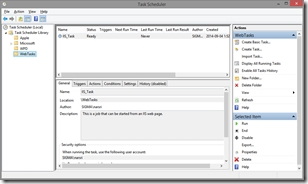
The first step is to create the scheduled task, so log into your IIS webserver and open up the Windows Task Scheduler.

image

In this example, I’ve created a separate sub-folder called “WebTasks” (select & then right-click on Task Scheduler Library” in the left panel –> New Folder) for organization purposes.

I have a prepared script that I want to run called “mytask.bat” located in a folder at “E:\Scripts\”. So lets start the Create Task dialog (right panel) to set up a task to run it, that we’ll call “IIS_Task

image
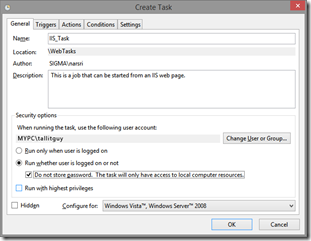
Enter the General parameters for the task, including setting up the appropriate user credentials that the task needs to run properly using the “Change User or Group” button. The sample is called IIS_Task
image
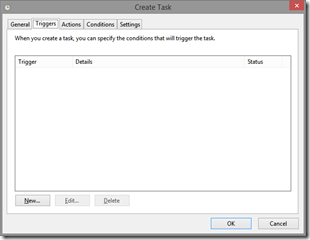
In the Triggers tab, we’ll leave this blank in the example. A Trigger is a schedule that will activate the task. We will only run this task manually, so this isn’t needed.
image
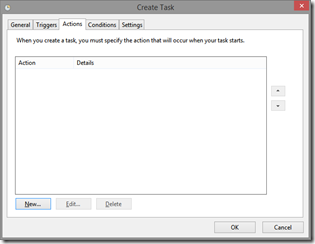
In the Actions tab, click the New button…
image
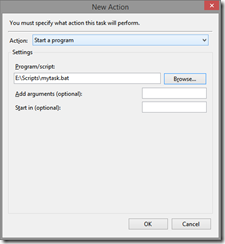
… and create an action to run the script we want – in this case “E:\Scripts\mytask.bat”
image
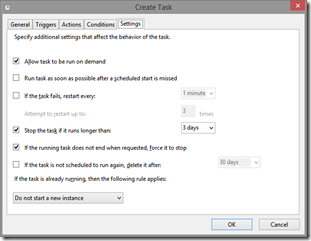
Switching to the Settings tab, make sure that the “Allow task to be run on demand” setting is checked. Click OK to save it.
image


Set Permissions on the Task


Next we have to change the permissions on this task so that the IIS process can run it. To do this go to the folder that the task files are saved in, by default that's:

C:\Windows\System32\Tasks\

In our case, since we earlier created this task in a sub-folder called “WebTasks”, we go here:

C:\Windows\System32\Tasks\WebTasks

You should see our new task in a file called “IIS_Task” (or whatever you named your version). Right-click on it & select Properties. Then add Read & Execute permissions for the IUSR account (the default account that IIS uses). If your install of IIS uses a different account, apply that one instead. Apply the change & close the dialog.

image

Now our task is created, and it’s permissions are changed so that the IIS process can call it, and IIS hasn’t been granted any unneeded permissions such as creating/changing tasks, or access to any of the resources that our task will use.

Create the web page


Finally, it’s time to create the web page that will do this.

I’ve actually looked to see how to call the Task Scheduler from .NET, but couldn’t find the reference in my brief poking around, but did see how to do it in VBScript, so this page is done in “Classic ASP”, rather than ASP.NET. Also, since it’s just an example, there is no security or controls on this demo page:

<% 
Dim vRun, vMsg

vMsg = ""
vRun = Trim(Request("run"))    'get form input

'If form value was submitted, run the task
If vRun = "Run Task" Then 
   RunJob 
End If  
 
'Routine to execute our task
Sub RunJob     
    Dim objTaskService, objRootFolder, objTask 

    'create instance of the scheduler service
    Set objTaskService = Server.CreateObject("Schedule.Service")    
    
    'connect to the service
    objTaskService.Connect            

    'go to our task folder, use just "\" if you saved it under the root folder
    Set objRootFolder = objTaskService.GetFolder("\WebTasks")    
    'reference our task
    Set objTask = objRootFolder.GetTask("IIS_Task")            

    'run it
    objTask.Run vbNull  
    vMsg = "Submitted"
    
    'clean up
    Set objTaskService = Nothing    
    Set objRootFolder = Nothing
    Set objTask = Nothing  
End Sub

%>
<html>
<body> 
<form method="post" action="runtask.asp"> 
  <p>Click to run the task: <input type="submit" value="Run Task" name="run" /></p> 
  <p>[<%= run %>]</p> 
  <p style="font-weight:bold; color:#006600;"><%= vMsg %></p>  
</form> 
</body>
</html>

Save that as runtask.asp in your wwwroot folder & try it out.

As you can see, the code to actually run our task is really simple, the real work is done in only five lines of code in the RunJob subroutine.

Hope this helps.

Wednesday, 13 June 2012

VBScript to authenticate against Active Directory

Came across this function somewhere online a long time ago to validate provided user credentials against Active Directory in VBScript (mainly if you had to update a "Classic" ASP 3.0 application to use AD authentication vs some other non-IIS integrated method - like querying a database). More recently I noticed that this was hard to find thanks to the age of ASP, so here it is for posterity.

Thanks to whomever wrote it all those years ago!

Here it is, basically the function takes a username & password as parameters, and in the example has the domain hard-coded in the domainName variable, though you can easily change it to pass that as a parameter as well. It then uses ADO to connect to the Active Directory domain using the provided credentials to try to execute a simple query. If it succeeds, then the credentials are good. If it errors out, then the username/password combination is bad.

Note: I've only used this approach on computers that are joined to the AD domain in question.
Function validateUser(username, password)
    Dim adConn, adCom, adRS
    Dim domainName

    On Error Resume Next
  
    domainName = "mydomain.com"
    err.clear

    Set adConn = Server.CreateObject("ADODB.Connection")

    adConn.provider ="ADsDSOObject"
    adConn.properties("user id") = username
    adConn.properties("password") = password
    adConn.Properties("Encrypt Password") = true
    adConn.Open "DS Query"

    Set adCom = CreateObject("ADODB.Command")
    Set adCom.ActiveConnection = adConn

    adCom.CommandText = _
          "select cn from 'LDAP://" & domainName & "' WHERE objectCategory='user'"
    Set adRS = adCom.Execute

    If err.Number = 0 Then
        validateUser = True
    Else
        validateuser = False
    End If

    adRS.close
    adConn.close

    Set adRS=nothing
    Set adCom=nothing
    Set adConn=nothing

End Function


In use:


<%
Dim bLoggedIn, usr, pwd

bLoggedIn = False

usr = Trim(Request("user"))  'validate your input IRL (In Real Life)!
pwd = Trim(Request("pwd"))

If usr<>"" and pwd<>"" Then
    bLoggedIn = validateUser (usr, pwd)
End If
%>

<html>
<body>

<% If bLoggedIn = False Then %>
    <form method=post>
    <p>Username: <input type="text" name="user" value="" /><br/>
       Password: <input type="password" name="pwd" value="" /><br/>
       <input type="submit" value="Login" /></p>
    </form>
<% Else %>
    <h2>Logged in!</h2>
<% End If %>

</body>
</html>