Saturday, 13 June 2015

VBScript to list the Active Directory security groups a user belongs to

This is a little script that queries the Active Directory domain and returns the AD security group memberships that the given user belong to by querying the MemberOf  property of the user.

Note:
  • The computer that the script is run on has to be joined to a domain, as it is querying the root DSE.

'Response.Write GetADGroups("tallitguy")    'ASP
MsgBox GetADGroups("tallitguy")             'VBScript

Function GetADGroups (ADUserName)
    
    Const ADS_SCOPE_SUBTREE = 2
    
    Dim objRootDSE, strDNSDomain, strTarget
    Dim objConnection, objCmd, objRecordSet
    Dim tmp, Ctr, i, Grp, strList
    
    ' Connect to the LDAP server's root object
    Set objRootDSE = GetObject("LDAP://RootDSE")
    strDNSDomain = objRootDSE.Get("defaultNamingContext")
    strTarget = "LDAP://" & strDNSDomain

    ' Connect to AD Provider
    Set objConnection = CreateObject("ADODB.Connection")
    objConnection.Provider = "ADsDSOObject"
    ' Domain account credentials with read access to LDAP:
    objConnection.Properties("User ID") = "domain\username" 
    objConnection.Properties("Password") = "password" 
    ' Connect to AD
    objConnection.Open "Active Directory Provider"

    Set objCmd =   CreateObject("ADODB.Command")
    Set objCmd.ActiveConnection = objConnection 

    ' Query to get groups a user is a Member Of:
    objCmd.CommandText = "SELECT memberof " & _
                        " FROM '" & strTarget & "' " & _
                        " WHERE objectCategory = 'user' " & _
                        " and name='" & ADUserName & "' "
    ' Set up the command object before running it
    objCmd.Properties("Page Size") = 100
    objCmd.Properties("Timeout") = 30
    objCmd.Properties("Searchscope") = ADS_SCOPE_SUBTREE
    objCmd.Properties("Cache Results") = False
    
    ' Execute query
    Set objRecordSet = objCmd.Execute

    ' Initialize counter & return value
    Ctr = 0
    strList = ""
    
    ' Iterate through the query results    
    Do Until objRecordSet.EOF
        For i = 0 to objRecordSet.Fields.Count -1
            For each Grp in objRecordSet.Fields("memberof").value
                Ctr = Ctr + 1
                tmp = Replace(Split(Grp, ",")(0), "CN=", "") 
                
                strList = strList & tmp & "; " & vbcrlf
                
            Next
        Next
        objRecordSet.MoveNext
    Loop
    
    GetADGroups = strList
    End Function

Thursday, 4 September 2014

Allowing an IIS web page to execute permissions-restricted scripts using a Scheduled Task

What do you do if you need to make a webpage that runs batch files (For example .bat, .cmd, .vbs, .ps files)? And to run them with a different security context than IIS, or with access to resources that you don't want to expose to IIS directly?

A while back I had a task that I needed to be able to trigger from a web page. In this particular case the task involved running a few different scripts & command line operations – some of which had to be done with particular permissions (such as accessing a share on a different server).

What I didn’t want to do was give those permissions to the IIS process to allow the page to execute these commands directly, as I was worried that a mistake might happen that will allow the page to do a lot more than I wanted and become an easy attack vector.

Realizing that I could encapsulate all of the steps of the task and their necessary permissions into a Windows Scheduled Task, I then set out to see how I can kick off a specified task in the scheduler from an ASP page. This is what I came up with. It has three basic steps:
  • Create your scheduled task that calls the script(s) that you want to run.
  • Open up the folder where the task file is saved and change permissions on it so that the IIS process can run it.
  • Create the web page that will access & run your task.

It’s actually a very simple process, but I’ll spell it out in detail here – because of that it may seem more complicated than it really is.


Create the Scheduled Task


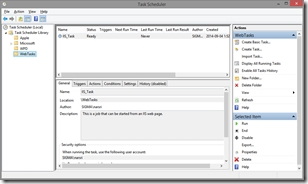
The first step is to create the scheduled task, so log into your IIS webserver and open up the Windows Task Scheduler.

image

In this example, I’ve created a separate sub-folder called “WebTasks” (select & then right-click on Task Scheduler Library” in the left panel –> New Folder) for organization purposes.

I have a prepared script that I want to run called “mytask.bat” located in a folder at “E:\Scripts\”. So lets start the Create Task dialog (right panel) to set up a task to run it, that we’ll call “IIS_Task

image
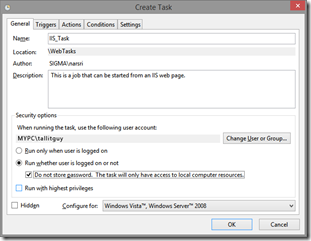
Enter the General parameters for the task, including setting up the appropriate user credentials that the task needs to run properly using the “Change User or Group” button. The sample is called IIS_Task
image
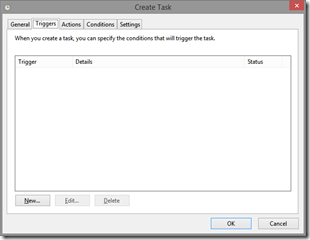
In the Triggers tab, we’ll leave this blank in the example. A Trigger is a schedule that will activate the task. We will only run this task manually, so this isn’t needed.
image
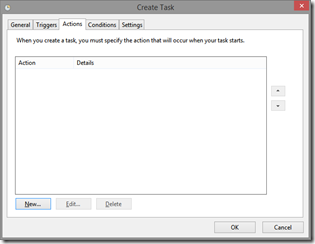
In the Actions tab, click the New button…
image
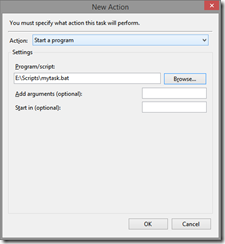
… and create an action to run the script we want – in this case “E:\Scripts\mytask.bat”
image
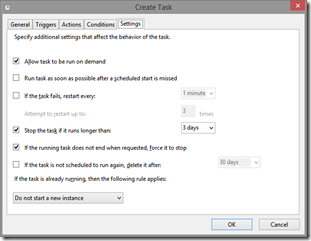
Switching to the Settings tab, make sure that the “Allow task to be run on demand” setting is checked. Click OK to save it.
image


Set Permissions on the Task


Next we have to change the permissions on this task so that the IIS process can run it. To do this go to the folder that the task files are saved in, by default that's:

C:\Windows\System32\Tasks\

In our case, since we earlier created this task in a sub-folder called “WebTasks”, we go here:

C:\Windows\System32\Tasks\WebTasks

You should see our new task in a file called “IIS_Task” (or whatever you named your version). Right-click on it & select Properties. Then add Read & Execute permissions for the IUSR account (the default account that IIS uses). If your install of IIS uses a different account, apply that one instead. Apply the change & close the dialog.

image

Now our task is created, and it’s permissions are changed so that the IIS process can call it, and IIS hasn’t been granted any unneeded permissions such as creating/changing tasks, or access to any of the resources that our task will use.

Create the web page


Finally, it’s time to create the web page that will do this.

I’ve actually looked to see how to call the Task Scheduler from .NET, but couldn’t find the reference in my brief poking around, but did see how to do it in VBScript, so this page is done in “Classic ASP”, rather than ASP.NET. Also, since it’s just an example, there is no security or controls on this demo page:

<% 
Dim vRun, vMsg

vMsg = ""
vRun = Trim(Request("run"))    'get form input

'If form value was submitted, run the task
If vRun = "Run Task" Then 
   RunJob 
End If  
 
'Routine to execute our task
Sub RunJob     
    Dim objTaskService, objRootFolder, objTask 

    'create instance of the scheduler service
    Set objTaskService = Server.CreateObject("Schedule.Service")    
    
    'connect to the service
    objTaskService.Connect            

    'go to our task folder, use just "\" if you saved it under the root folder
    Set objRootFolder = objTaskService.GetFolder("\WebTasks")    
    'reference our task
    Set objTask = objRootFolder.GetTask("IIS_Task")            

    'run it
    objTask.Run vbNull  
    vMsg = "Submitted"
    
    'clean up
    Set objTaskService = Nothing    
    Set objRootFolder = Nothing
    Set objTask = Nothing  
End Sub

%>
<html>
<body> 
<form method="post" action="runtask.asp"> 
  <p>Click to run the task: <input type="submit" value="Run Task" name="run" /></p> 
  <p>[<%= run %>]</p> 
  <p style="font-weight:bold; color:#006600;"><%= vMsg %></p>  
</form> 
</body>
</html>

Save that as runtask.asp in your wwwroot folder & try it out.

As you can see, the code to actually run our task is really simple, the real work is done in only five lines of code in the RunJob subroutine.

Hope this helps.

Wednesday, 27 August 2014

SQL Server: Inline Queries Across Linked Servers

I’ve had to run a scheduled T-SQL query from one database to another linked server for an import operation. I'm finding that I have to do some comparisons between the result of two subqueries in order to get the proper value for one column. So the results I want would correspond to something like this:

Insert into localTable (columns)

Select col1, col2, col3,

CASE 
      WHEN subquery1result > subquery2result THEN subquery1result
      ELSE subquery2result
END As col4 From server.schema.dbo.table1 Where [stuff]

Note the reference to the linked server… First you have to set up the Linked Server in SQL Server, then you can reference the external database table as [LinkedServerName].[SchemaName].[DataBaseOwner].[TableName]

To flesh that out a little more, if I filled in those subqueries in-line:

Insert into localTable (columns)Select col1, col2, col3,

CASE 
    WHEN (select MAX(T2.datecol) from server.schema.dbo.table2 T2 where T2.id = T1.id) > 
         (select MAX(T3.datecol) from server.schema.dbo.table3 T3 where T3.id = T1.id) 
    THEN (select MAX(datecol) from server.schema.dbo.table2 T2 where T2.id = T1.id) 
    ELSE (select MAX(T3.datecol) from server.schema.dbo.table3 T3 where T3.id = T1.id) 

END As col4

From server.schema.dbo.table1 T1

Where [stuff]


But that doesn’t work – using subqueries in a CASE statement like that won’t fly.
I would normally do these subqueries as user-defined scalar functions, but I can't seem to make one that queries tables in a linked server. And I'm not allowed to modify the schema of the database on the linked server (vendor system).

Any ideas on another way of doing this? I suppose I should copy all relevant values into a holding table (on the local server) & then run the import from there instead of importing directly from the linked server. I was just hoping I could keep it as a straight 'Insert Into... Select From' query in a single step.

I think I stumbled upon a "good enough" solution (which suitably horrify a proper SQL-Ninja):

Insert into localTable (columns)

Select col1, col2, col3,
(Select MAX(DC) From 
   (
      select MAX(T2.datecol) as DC from server.schema.dbo.table2 T2 where T2.id = T1.id
      UNION
      select MAX(T3.datecol) as DC from server.schema.dbo.table3 T3 where T3.id = T1.id 
   ) as U
) As col4

From server.schema.dbo.table1 T1

Where [stuff]

It seems to work, though the query is a bit on the slow side (7 seconds to return ~2K rows). Well within reason for a nightly batch job though. Basically the UNION of multiple inline queries forms a set of it’s own, which we can further query from. In this case we’re choosing the Maximum value returned from two different queries.

Friday, 1 August 2014

My .NET app is really slow on one PC, fine on all others

So I had this small .NET Windows Forms application that has been running on a large number of our lab computers with no issues. Not that it matters, but this program would run in the background and record logins to each lab computer against the booking system for reserving the labs.

One such computer was recently upgraded to Windows 7 from XP as a result of the end-of-life support of XP (and a bit of common sense, which is known to happen once in a while).

So once the computer was freshly wiped and had Windows 7 installed & patched, my little program was installed... and it was dog slow.

I mean it was really slow. Where it used to go from launch to actually doing anything (such as becoming visible) in under a second, it was now taking 10 to 15 minutes before there was any evidence of it running. On the same machine.

Looking at the installed .NET frameworks on a working PC and the problem one, they were both the same (at the time, 4.5.1), and earlier versions were not installed side-by-side on either machine. The application was written in Visual Studio 2010 and targeted the 4.0 .NET framework.

Now keep in mind that the older machines used to have older versions of the framework which were then upgraded over time (2.0 -> 3.0 -> 3.5 -> 4.0 -> 4.5). However, being a clean install, the re-installed machine was set up with just .NET 4.5.1 without having passed through any of the earlier versions.

Turns out that was the problem.

Removing .NET, then re-installing it with 4.0 only, and then allowing it to update to 4.5.1 afterward on the problem machine fixed it. I don't know what the mechanism is that causes this, but when a .NET app is targeting an earlier framework than was ever installed on the destination PC, problems like this can happen.


Thursday, 7 November 2013

IE11 is out - change in behaviour in Theatre Mode (F11)

We have some public display content (basically web-based slideshows on 42" screens around the building) that use Internet Explorer on Windows 7 in kiosk mode to render the content. And now IE11 for Win7 is out, so I figured I should test that out.

PS. The system was originally deployed with IE9, and the upgrade to IE10 caused no issues, and tests in IE11 show no rendering issues either.

However, when during the production cycle, to test content before deploying it I use IE in 'theatre mode' (F11) where the browser goes full-screen and the toolbars, window borders, etc are all hidden in order to have the same visual experience (on a monitor with t he same 1080p resolutions).

This is something I do often - and noticed that the behaviour in that mode has changed from IE10 to IE11: it used to be if you moved the mouse to the top edge of the screen the address bar etc will become visible, and then if you moved the mouse back down they will hide again.

No longer, now you have to right-click. Then it doesn't go away unless you exit F11 & then activate it again.

Anyone else seeing that? I haven't had a chance to test on multiple machines yet, so this may be some local oddity vs. a deliberate change in application behaviour.

Friday, 28 June 2013

Quick Byte: Script to set the homepage in IE

Quick Byte: VBScript to set the homepage in IE, possibly useful to set a standard setup for a corporate desktop, assuming you didn't have a better option like a GPO.

Dim WshShell

Set WshShell = CreateObject("Wscript.shell")

WshShell.RegWrite "HKEY_CURRENT_USER\Software\Microsoft\Internet Explorer\Main\Start Page", "http://parmedx.appspot.com", "REG_SZ"     


Set WshShell = Nothing
 

Wednesday, 20 February 2013

Quick Byte: Select all column names in a table

Quick Byte: T-SQL query to select all the field/column names from a given table:

Select COLUMN_NAME -- or Select * for all column attributes (ie data_type, default_value, ...)
From INFORMATION_SCHEMA.COLUMNS
Where TABLE_NAME = 'TableName'
Order By ORDINAL_POSITION


Applies to SQL Server.

Wednesday, 11 July 2012

Install network printers that are not already installed

Very handy VBScript which I found at WinVistaTips.com thanks to user "markm75". It lets you set up a list of network printers that a PC needs to have installed on it, checks to see which (if any) are not currently installed, and installs only the missing printers.

I've previously used .bat scripts to install network printers, but the problem with those is that the way we had to connect to them (using a command like the following: explorer \\printserver\printername$), once installed the print queue window would always be opened for every printer that was connected to. So if we had 3 printers that had to go on each PC and that script would run on each login, those 3 printers would run through the install process & the 3 print queue windows will open up on each login as well. Even if the printers were already installed.

This script handily works around both issues: printers that are already installed are just skipped from further processing, and if missing, the installation is silent without any dialogs or windows popping up (unless if UAC is required to install a driver or some such).

So here it is for posterity (in case those forums are ever shut down – and to improve it’s discoverability – it’s quite useful). Hopefully it will help others. I've adjusted the script a little from the original here, but it's identical where it counts.

Option Explicit
On Error Resume next
 
Dim Printers(3), WshNetwork, objWMIService, colPrinters, bFound, InstalledPrinter, Printer
 
'array of network printers we need to have installed
Printers(0) = "\\printserver\HP2600"    
Printers(1) = "\\printserver\HP4200"
Printers(2) = "\\printserver\Lexmark360"
 
Set WshNetwork = CreateObject("WScript.Network") 
Set objWMIService = GetObject("winmgmts:\\.\root\cimv2")
' "." = local PC, else put in PC name instead of the dot
Set colPrinters = objWMIService.ExecQuery _
                ("Select * From Win32_Printer Where Local = False")     
                'Populate Printers Collection on the PC specified above
 
If colPrinters.Count <> 0 Then
    'loop through array of Printers we need to have installed
    For each Printer In Printers  
        bFound = False
        'loop through printers currently installed on target machine, 
        'compare each to the printer we need installed:
        For Each InstalledPrinter In colPrinters
            '.ShareName is the share ' servername for server 
            If Ucase(InstalledPrinter.ServerName & "\" & InstalledPrinter.ShareName) = _
               Ucase(Printer) Then
                   bFound = True 'if Printer is already installed/found, skip to next printer
                   Exit For
            End If
        Next 
        
        If bFound = False Then    'if Printer is not installed, install it
            If Printer <> "" Then '(if Printer is named/not null string)
                WshNetwork.AddWindowsPrinterConnection Printer
            End If
        End If        
    Next
 
End If
 
Set WshNetwork = Nothing
Set objWMIService = Nothing
Set colPrinters = Nothing

Friday, 15 June 2012

System File Checker

This is handy tool I found. Have you had a Windows system encounter problems due to corrupted system DLLs? A while back I encountered that on a Win7 system that would refuse to run Windows Updates with a "Program cannot start because sqmapi.dll is missing" error. It wouldn't run an offline SP1 install either due to the same problem.

The solution: System File Checker.

Steps:
  1. Open an elevated command prompt (Start -> type "cmd" -> Right-click the cmd shortcut and select "Run as Administrator"
  2. Provide admin credentials if UAC prompts you.
  3. Type: SFC /scannow and press enter. The program will take a few minutes to check each system dll for corruption and for wrong versions, and replace them as needed.
  4. When it's finished, type findstr /c:"[SR]" %windir%\Logs\CBS\CBS.log >%userprofile%\Desktop\sfcdetails.txt to put a log file onto your desktop, which you can review to see what was updated.
  5. Repeat steps 3-4 two more times (run SFC three times) to ensure that no files were missed. You may want to reboot after each run - though when I did it I didn't have to.
  6. Profit! (ie I was once again able to run Windows Update normally and get the Service Pack installed)
I've only used this on Windows 7 (Enterprise), but it's a feature that was introduced with Vista.

Microsoft support link:
http://support.microsoft.com/kb/929833

Wednesday, 13 June 2012

VBScript to authenticate against Active Directory

Came across this function somewhere online a long time ago to validate provided user credentials against Active Directory in VBScript (mainly if you had to update a "Classic" ASP 3.0 application to use AD authentication vs some other non-IIS integrated method - like querying a database). More recently I noticed that this was hard to find thanks to the age of ASP, so here it is for posterity.

Thanks to whomever wrote it all those years ago!

Here it is, basically the function takes a username & password as parameters, and in the example has the domain hard-coded in the domainName variable, though you can easily change it to pass that as a parameter as well. It then uses ADO to connect to the Active Directory domain using the provided credentials to try to execute a simple query. If it succeeds, then the credentials are good. If it errors out, then the username/password combination is bad.

Note: I've only used this approach on computers that are joined to the AD domain in question.
Function validateUser(username, password)
    Dim adConn, adCom, adRS
    Dim domainName

    On Error Resume Next
  
    domainName = "mydomain.com"
    err.clear

    Set adConn = Server.CreateObject("ADODB.Connection")

    adConn.provider ="ADsDSOObject"
    adConn.properties("user id") = username
    adConn.properties("password") = password
    adConn.Properties("Encrypt Password") = true
    adConn.Open "DS Query"

    Set adCom = CreateObject("ADODB.Command")
    Set adCom.ActiveConnection = adConn

    adCom.CommandText = _
          "select cn from 'LDAP://" & domainName & "' WHERE objectCategory='user'"
    Set adRS = adCom.Execute

    If err.Number = 0 Then
        validateUser = True
    Else
        validateuser = False
    End If

    adRS.close
    adConn.close

    Set adRS=nothing
    Set adCom=nothing
    Set adConn=nothing

End Function


In use:


<%
Dim bLoggedIn, usr, pwd

bLoggedIn = False

usr = Trim(Request("user"))  'validate your input IRL (In Real Life)!
pwd = Trim(Request("pwd"))

If usr<>"" and pwd<>"" Then
    bLoggedIn = validateUser (usr, pwd)
End If
%>

<html>
<body>

<% If bLoggedIn = False Then %>
    <form method=post>
    <p>Username: <input type="text" name="user" value="" /><br/>
       Password: <input type="password" name="pwd" value="" /><br/>
       <input type="submit" value="Login" /></p>
    </form>
<% Else %>
    <h2>Logged in!</h2>
<% End If %>

</body>
</html>


Saturday, 9 June 2012

First Post (second actually)

My actual first post was about a problem I encountered at work. This "First!: post is to introduce the blog.

The main point in setting this up is to document for myself, and anyone else who would find it helpful, various problems and solutions that I've come across in my work as an IT Guy™. In time I'll be posting various code snippets from scripts & queries etc. that I've used in my work.

My first post was just the problem & stepping back/recovering from it, and does not yet have an actual solution. Hopefully that won't be the dominant trend.

Friday, 8 June 2012

Problem with expiring old user profiles on Windows 7


I was testing the "Delete user profiles older than a specified number of days on system restart" local policy - which deletes the profile from the computer if it hadn't been logged into for X days - on two Windows 7 Enterprise (32-bit) computers that are used a lot of different people logging in with their own domain accounts, so I wanted old profiles to get deleted & not cruft up the local system over time (these are local profiles not roaming profiles).

The problem I've run into now that the first profiles have started to expire is:

a) If the user comes back X+ days after their last login to use the computer again, they can't log on at all with a "The User Profile Service failed the logon. User profile cannot be loaded." error.

b) The user profile folder still exists - it's just empty. Not really a problem in itself - but could it be a symptom/cause of a)?

The problem profile SIDs are removed (no longer listed in the registry under Local_Machine\..\Windows NT\CurrentVersion\ProfileList nor do they appear in Advanced System Settings -> User Profiles.  (ie they appear to be properly deleted).

The policy has since been turned off so it won't affect any more people, but why is this preventing those old users from logging back in? I'd expect Windows to just rebuild the profile like it would for a brand new user, instead it errors out.

I know Vista has a hotfix for a problem relating to that policy, but that was for premature deletion, not this error. 7 doesn't appear to have any related updates.

Just had a bad thought: could that policy have deleted the Default profile? I wonder if whomever built that system image did something kooky when setting it up that would allow that.

---
Update: the error also happens for a user account that has never logged into the machine as well. That does sound like a Default profile problem.

---
Update 2: Damn. Advanced System Settings > User Profiles, for one computer, there is no entry for "Default profile". The other one has it, but zero bytes. Looks like I'm going to have to re-install the suckers when I'm back next week unless if anyone knows a quick way of re-establishing a new default profile for the system. I'll try a System Restore first, with luck it'll save it. Either way it'll have to wait.

How could that policy delete the default profile anyways? Can a machine be set so that the default profile is C:\Users\regularuser instead of the normal (hidden) Default user folder?

---
Update 3: Stayed on it & managed to get it fixed.

System Restore brought back the default profile (but that in turn broke the trust relationship with the domain... leaving & rejoining the domain under a new PC name fixed that). Domain users with no existing profile (either old & deleted, or never existed on that PC) are now able to log in normally.

Now these computers are working as they should, but the question remains of how this happened in the first place: why did the profile expiry policy delete the default profile? I may need to figure out some things with the original system image.